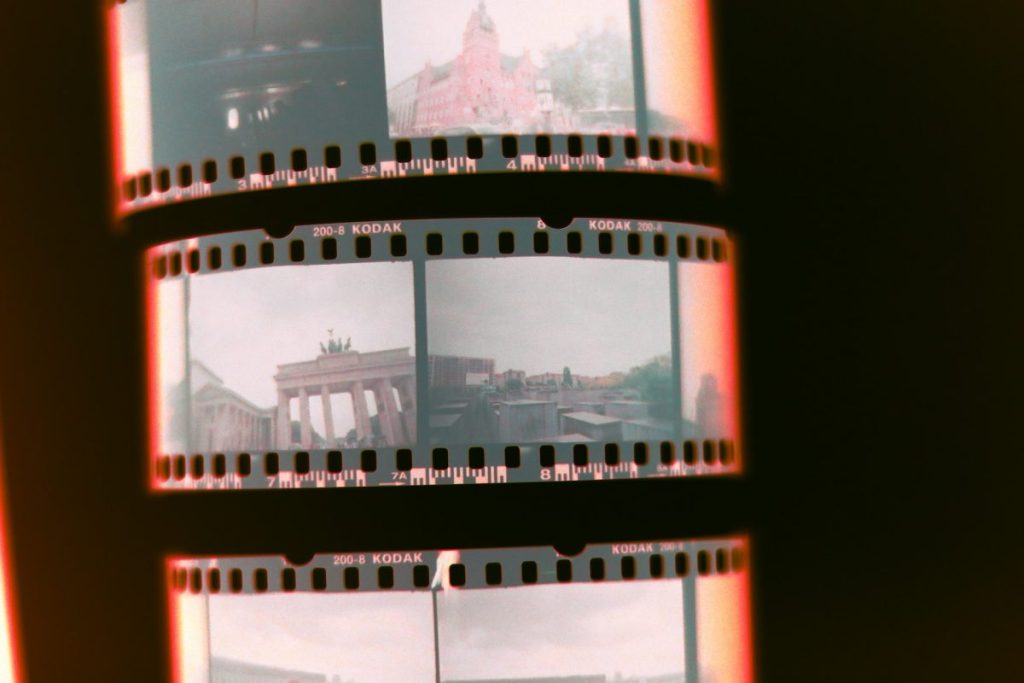
Digitising your old negatives is more than just a technical task—it’s an act of preservation. It’s about rescuing those “lost” moments from a shoebox in the garage and bringing them into the light of the digital age.
While a dedicated film scanner is the gold standard, you don’t need a thousand-dollar setup to get started. With a standard flatbed scanner and a little bit of patience, you can achieve impressive results. Here is our step-by-step guide to DIY scanning, along with a few “pro secrets” from the team at Photo Restoration Rescue.
Scanning negatives with a flatbed scanner involves cleaning the equipment, positioning the film correctly, adjusting resolution settings, and using editing software to invert and enhance the image. With the right tools and technique, you can digitise film at home.
How to Scan Your Negative Films
Using a Standard Flatbed Scanner
Before we jump into the how-to, consider this: Film negatives degrade over time due to environmental factors like humidity, light exposure, or even improper storage. Digitizing creates backups that last forever, allowing you to edit, enlarge, or print without risking the originals. Plus, it’s a fun weekend project that reconnects you with your history. If your negatives have suffered from water damage (as we discussed in our recent post on rescuing wet photos), scanning them post-restoration is the perfect next step to safeguard them digitally.
Scanning negatives flips the script on traditional photo scanning— you’re capturing transmitted light through the film, not reflected light from prints. This requires a few tweaks, but with patience, you’ll get stunning inversions that reveal hidden colours and details.
What You’ll Need to Get Started
Before you dive into scanning, make sure you have everything you need. Here’s your checklist:
- Flatbed Scanner: Preferably one with high resolution that can scan at least 2400 DPI optical resolution (not interpolated)
Critical Accessories Most Guides Miss
Anti-Newton Ring (ANR) glass: Eliminates the “Newton’s rings” interference patterns that appear when film bows slightly off the glass
Canned air blower (not compressed air with propellants): Removes dust without contact
Lint-free pec-pads or microfibre: Specifically for optics, not household cleaning cloths
White cotton gloves: Prevents fingerprints on emulsion
Light table or tablet: For inspecting negatives before scanning
Software: VueScan or SilverFast (superior to manufacturer software), or GIMP/Photoshop for post-processing
The Pre-Scan Process: Inspection is Everything
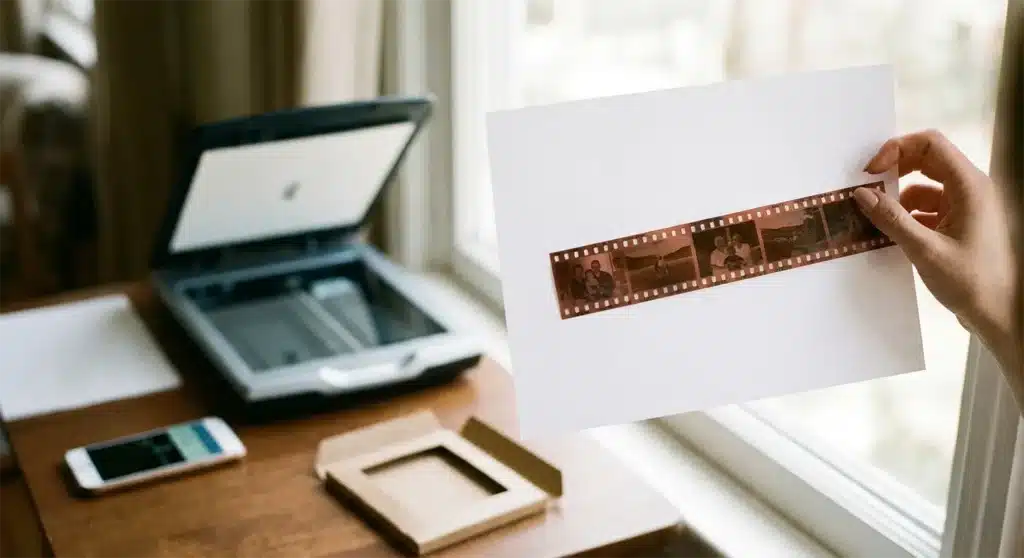
Before placing anything on glass, examine your negatives on a light table or against a window with white paper behind them.
What you’re looking for:
Physical damage: Scratches, bends, or cracked acetate
Mold spotting: Appears as mottled purple or green patches (common in Australian humid climates)
Colour shifts: Colour negatives that have shifted toward orange/red indicate vinegar syndrome (acetate decay)
Water damage: Stuck frames or mineral deposits from previous flooding
If your negatives were stored in sheds, roof spaces, or uncontrolled environments during Victoria’s humid summers, check for emulsion softness. Australian heat can cause the gelatin layer to become tacky.
Master the Placement
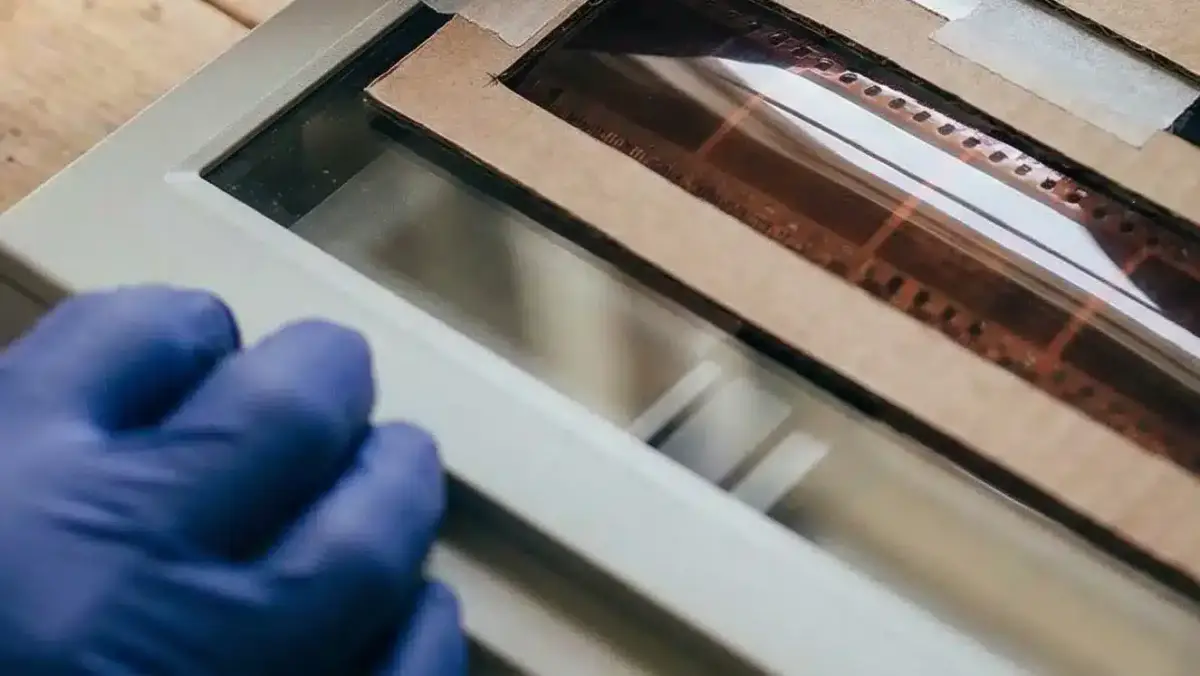
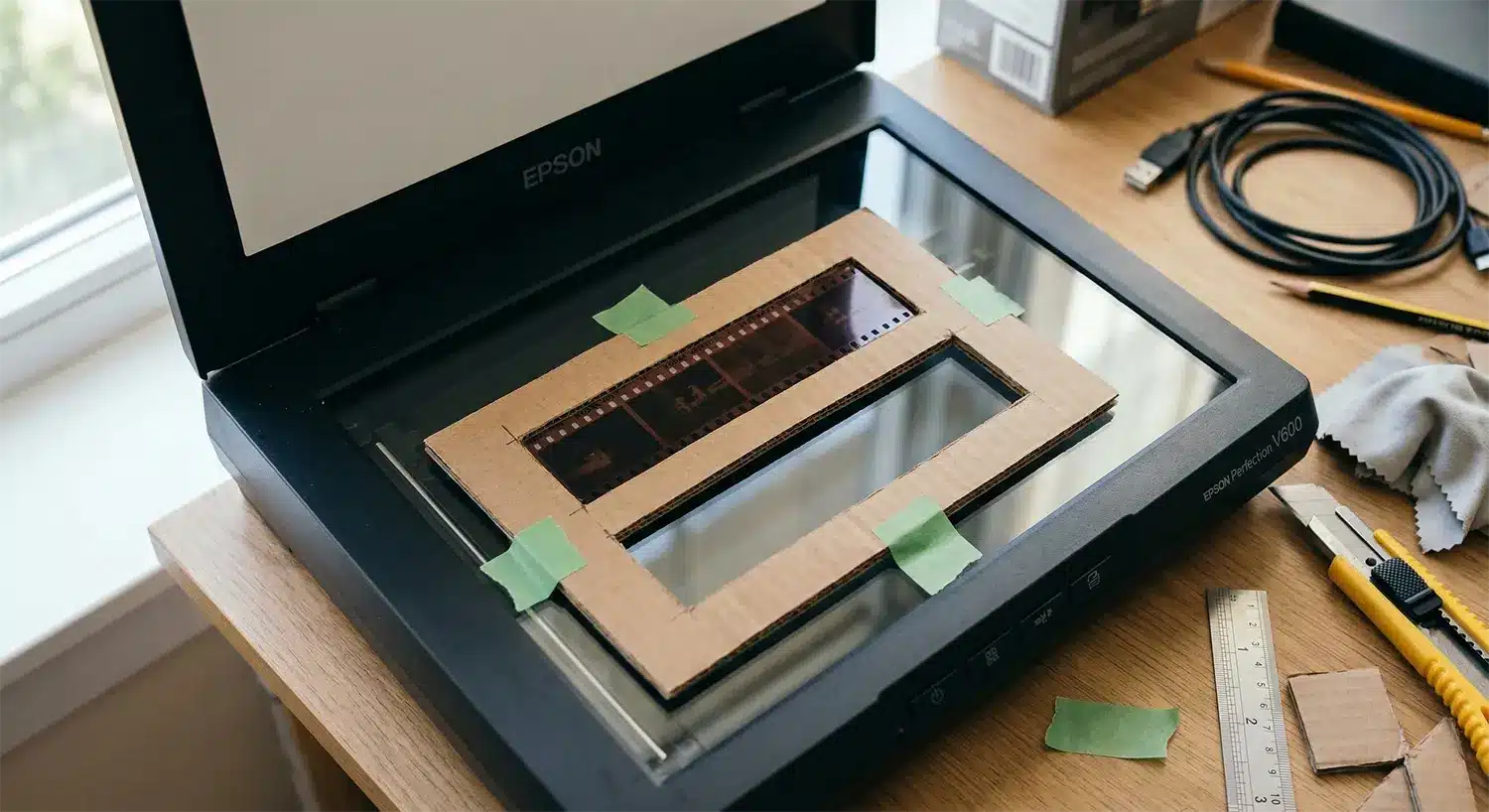
Lay your negatives emulsion-side down (usually the duller side) on the glass. If you don’t have a plastic film holder, you can cut a simple cardboard frame. This keeps the film flat and prevents “Newton rings”—those annoying oily-looking rainbow patterns that occur when film touches the glass directly.
Curled negatives can cause soft, out-of-focus areas, and direct contact with the glass can create rainbow-like Newton’s rings. A thin cardboard holder gently lifts the film off the glass and keeps it flat for cleaner, sharper scans.
- Thin, stiff cardboard (cereal box or notepad backing)
- Sharp craft or utility knife
- Metal ruler
- Cutting mat or scrap wood
- (Optional) Matte black paint or thick black marker
- Measure your negative strip
For 35mm film, the strip is about 35 mm wide, with each frame ~36 × 24 mm. - Cut the outer frame
Cut a cardboard rectangle around 260 × 60 mm. - Cut the inner window
Cut a long 24 mm-wide window down the centre. - Reduce glare
Paint the frame matte black or colour it with a marker. - Use your DIY holder
Place the frame on the scanner, align your film, and scan.
Scanner Settings That Actually Matter
Open your scanning software (we recommend VueScan for its superior colour handling of film):
Resolution Strategy
35mm negatives: Minimum 2400 DPI (produces ~10MB files allowing 8×10″ prints)
Archive quality: 3200–4800 DPI (future-proofs for large prints)
Medium format (120): 1600–2400 DPI sufficient due to larger original size
Colour Depth
Always scan in 48-bit colour (16-bit per channel) even for black-and-white negatives. This preserves subtle tonal gradations during editing.
File Format
Save as uncompressed TIFF (not JPEG). Storage is cheap; lost detail is permanent.
Multiple Pass Scanning
Enable multi-sampling (4× or 16× passes) if available. This dramatically reduces electronic noise in shadow areas—critical for recovering detail in underexposed frames.
Scan Mode: Select “Film” or “Transparency” if available; otherwise, “Colour Photo.” Scan in 48-bit color for richer tones, even on black-and-white film.
Other Options: Enable dust removal (like ICE technology on Epson scanners) and set file type to TIFF for lossless quality. Preview scans to adjust exposure.
Test on a scrap negative first to dial in settings—every scanner varies.
Lighting Without Transparency Units
If your flatbed lacks built-in transparency lighting (transparency unit):
The DIY Backlight Method:
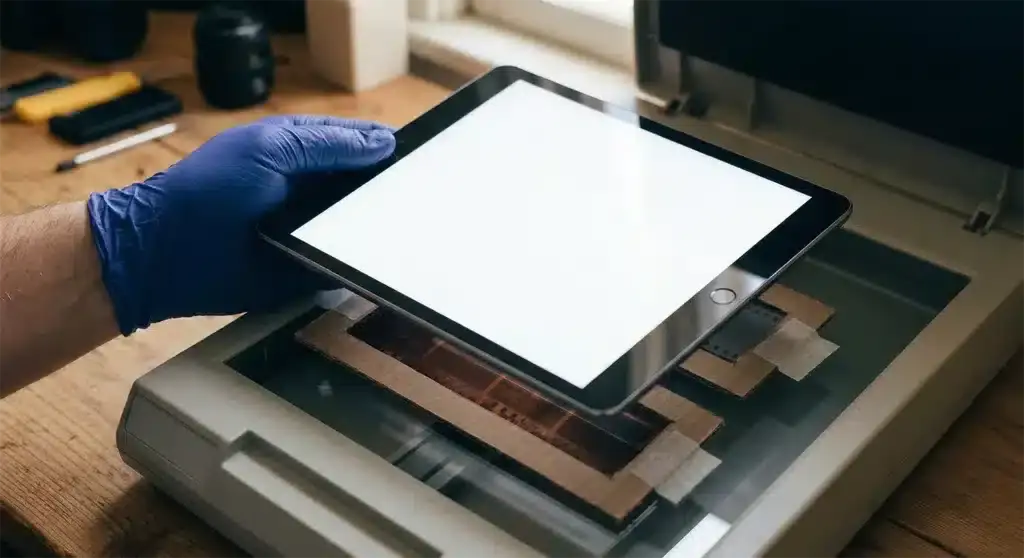
Use an iPad or tablet with a pure white screen at maximum brightness
Place a diffuser (white acrylic sheet or even baking paper) between tablet and film to soften hotspots
Position film holder on scanner glass, then carefully place illuminated tablet on top
Scan in complete darkness or cover setup with opaque cloth to prevent ambient light contamination
Warning: This method works for quick digitising but introduces colour casts that require intensive correction. For irreplaceable family history, professional scanning services with calibrated light sources are strongly recommended.
The Digital Darkroom: Inverting Negatives Correctly
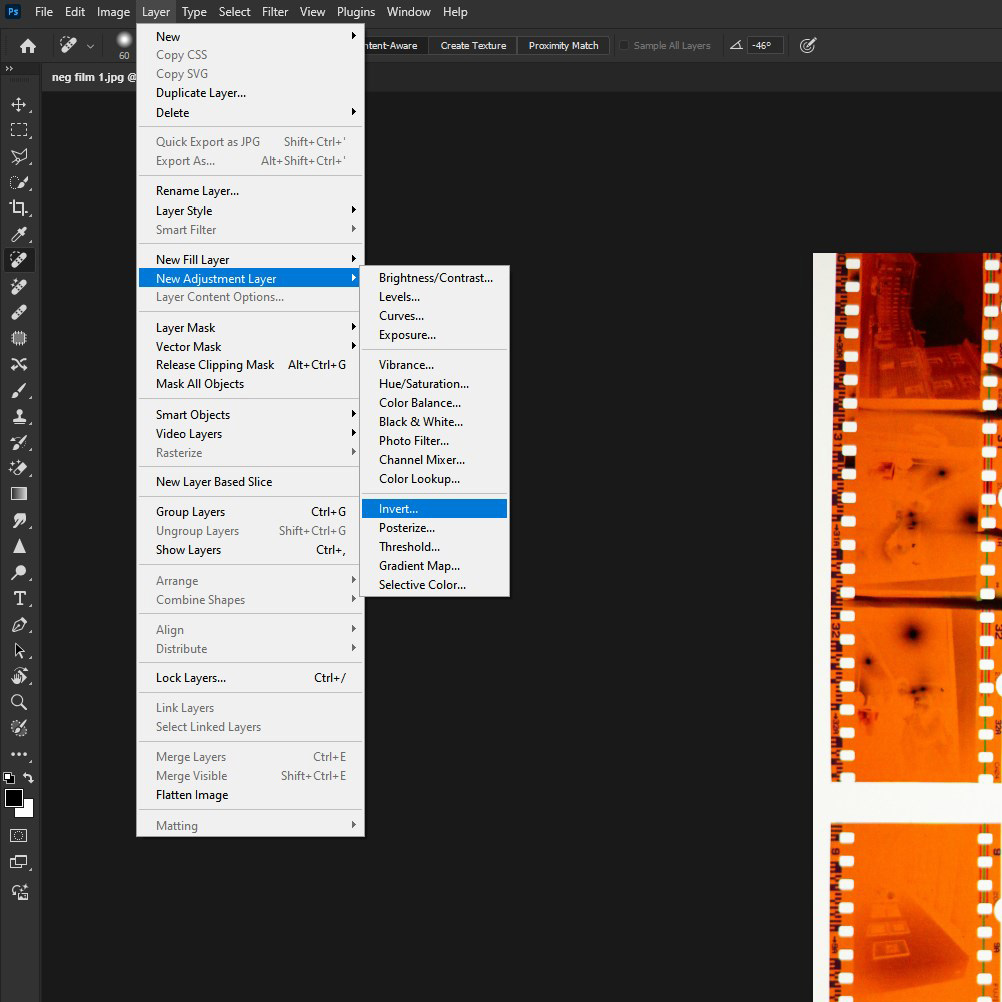
Raw scans of negatives look wrong—orange masks and reversed tones. Here’s how to transform them properly:
For Black-and-White Negatives
In GIMP/Photoshop:
Open your scanned TIFF
Invert (Image > Adjustments > Invert or Ctrl+I)
Set black and white points: Use Levels (Ctrl+L) to drag the black triangle to where the histogram starts, and white triangle to the highlight end. This establishes true black and white.
Midtone adjustment: Adjust the grey middle slider to set overall brightness—generally, human skin should read around 50-60% brightness on the histogram.
For Colour Negatives (The Orange Mask Challenge)
Colour negatives have an orange base that requires multi-channel correction:
In Photoshop:
Invert the image
Auto-colour often fails with negatives. Instead, use Curves:
Red channel: Pull top-right toward left slightly (removes cyan cast)
Green channel: Create gentle S-curve for contrast
Blue channel: Raise black point slightly (removes yellow shadows)
Neutral grey balance: Use the grey dropper on something that should be neutral (white shirt, grey concrete) to set colour balance automatically.
Alternative superior method: Scan as “positive” (don’t invert in scanner), then use Negative Lab Pro plugin for Lightroom—specifically engineered for colour negative conversion with film profile matching.
Pro Tips for “Rescue-Grade” Results
Scan in Colour (Always): Even for Black & White film, scanning in colour mode captures more information, giving you more flexibility when you’re editing the “grain” and “tones” later.
Mind the Temperature: If your negatives have been in a cold basement, let them reach room temperature before scanning to prevent curling or moisture under the glass.
- Outsource fragile or valuable negatives: Professional scanning ensures maximum detail and safety.
Batch Process: Scan multiple strips at once and crop in software to streamline.
❌ The DIY Reality Check: When to Stop and Call Us
Scanning at home is rewarding, but it’s not always the best option. Here is when you should put the scanner down and bring your negatives to Photo Restoration Rescue in Melbourne:
1. The “Kodachrome” Conundrum
If your negatives are Kodachrome slide film (often mounted in cardboard slides from the 50s-70s), they have a different chemical structure. Flatbed scanners struggle to get the colours right, and they often scan with a heavy red cast that is nearly impossible to remove at home.
2. Severe Physical Damage
If your negatives are:
Sticky or “vinegar-syndrome” smelling (a sign of acetate film decay)
Cracked or severely curled
Covered in mould or fungus
…putting them in a scanner can damage both the film and your machine. We have the equipment to handle hazardous or fragile media safely.
3. You Have Hundreds (or Thousands) of Images
Let’s do the math. At 5 minutes per scan (including editing), 500 negatives will take you over 40 hours. Is your time better spent elsewhere? We offer bulk digitising services that are faster and often cheaper than buying a new scanner and software suite.
Photo restoration made simple.
Allow our experts to restore your damaged photos with precision and care - satisfaction guaranteed! Proofs and tweaks included — no surprises, just satisfaction.
01. Get Your Quote
Upload a photo for a free price estimate.
02. Review Proofs
See our work before you finalise your order.
03. Digital Delivery
Download your high‑res restored image.
Frequently Asked Questions About Scanning Negatives
What's the best DPI setting for scanning 35mm negatives?
2400 DPI is the minimum for good 8×10 prints, but 3200–4800 DPI captures the full grain structure and allows cropping while maintaining quality. Always rely on your scanner’s optical resolution, not interpolated values.
Can I scan negatives on a regular document scanner without transparency capability?
It’s technically possible using DIY backlighting, but results are significantly inferior. Document scanners are designed for reflective surfaces, not light‑passing film, so sharpness, colour accuracy, and dynamic range are all reduced.
Why do my scanned negatives look grainy or noisy?
High grain or noise can come from scanning at very high DPI on high‑ISO film, underexposed negatives requiring heavy shadow recovery, or lack of multi‑pass scanning. Apply noise reduction sparingly and mainly to shadow areas.
Should I clean old negatives with water?
Avoid tap water because it leaves mineral deposits. Use Pec‑12 or 99% isopropyl alcohol with lint‑free wipes for surface cleaning. If mold is present, stop immediately—mold can indicate vinegar syndrome and requires professional conservation.
Why do I see Newton’s rings in my scans?
Newton’s rings occur when film lies directly on the scanner glass. Use a film holder, DIY cardboard shim, or anti‑Newton glass to lift the film slightly and keep it flat.
Is TIFF better than JPEG for scanned negatives?
Yes. TIFF preserves all captured detail with no compression loss, while JPEG discards tonal information and introduces artifacts. Always archive a TIFF master and export JPEGs only for sharing.
Why do my scans look flat or low contrast?
Negatives have a wide dynamic range, and many scanners struggle to capture deep shadows. Enable film mode if available, increase D‑max settings, or adjust curves during post‑processing to restore proper contrast.
Do I need to scan black‑and‑white negatives in colour?
Yes — scanning in colour captures more tonal information, giving you greater flexibility when editing. You can convert to monochrome later with better results.
Let Us Scan Your Negatives
Our high‑resolution film scanners capture every grain, every tone, every moment — with precision only professional equipment can deliver. Get your negatives digitised by a trusted Melbourne photo restoration specialist today.
Start Your Scan