
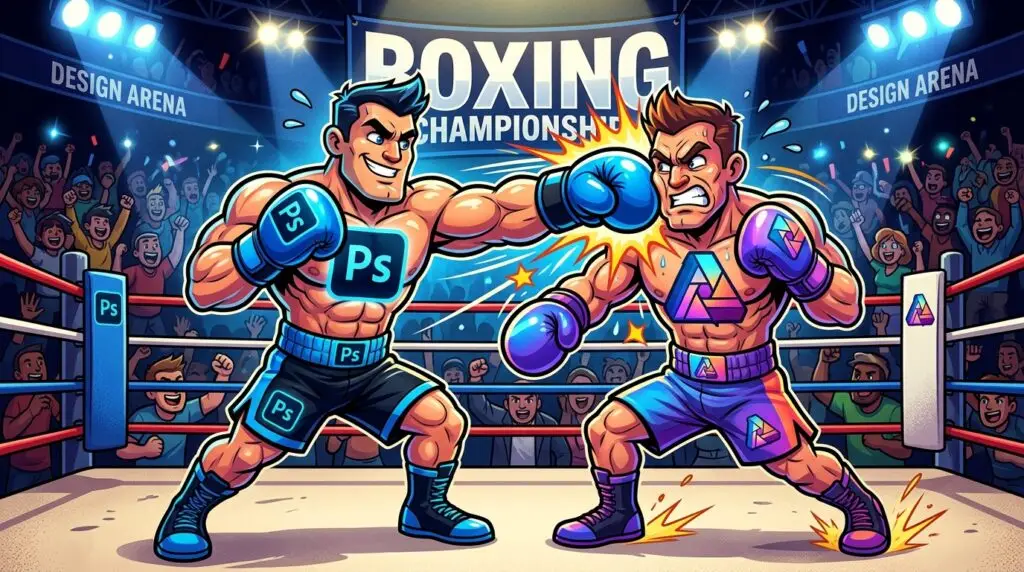
Should I use Adobe Photoshop, Affinity Free, or Affinity Premium?
For anyone getting started with photo restoration, one question comes up repeatedly: Should I use Adobe Photoshop, Affinity Free, or Affinity Premium?
The answer depends largely on the type of restoration you’re doing and the level of accuracy you’re aiming for.
If you’re simply repairing a few scratches on old family photographs, all three options are capable of producing good results. However, if you’re restoring heavily damaged portraits, repairing missing facial features, reconstructing details, or working professionally with client photographs, the differences between these platforms become much more apparent.
As someone who restores photographs professionally, I can say that software is only part of the equation. Experience, patience, and attention to detail matter far more than the program itself. However, the software you choose can dramatically affect both the quality of the final image and the amount of time required to achieve it.

Affinity Free
The free version of Affinity is surprisingly powerful and gives users access to most of the core editing tools required for manual photo restoration.
You still get access to:
- Layers
- Masks
- Clone Brush
- Healing Brush
- Inpainting Brush
- Frequency Separation
- RAW Development
- Colour Correction Tools
- HDR Merge
- Panorama Stitching
- Selection Tools
- Adjustment Layers
This means you can perform genuine professional restoration techniques without spending money.
For many restorers, especially beginners, Affinity Free has more than enough functionality to repair:
- Scratches
- Folds
- Dust spots
- Tears
- Watermarks
- Fading
- Colour casts
- Minor missing details
The biggest limitation isn’t the manual tools.
The limitation is what you don’t get.
You don’t have access to the more advanced AI-assisted features that can dramatically speed up certain workflows.
As a result, many repairs that take seconds with AI may require several minutes—or even hours—of manual work.
That said, manual restoration isn’t necessarily a disadvantage. In fact, when restoring historical family photographs, manual techniques often produce more accurate results than automated AI tools.

Affinity Premium
Affinity Premium builds upon the same core editing platform but adds Canva’s AI-powered features and cloud integrations.
For users who want modern AI assistance without moving into Adobe’s subscription ecosystem, this can be a compelling option.
Additional capabilities may include:
- AI object removal
- AI-generated content creation
- Generative editing tools
- Enhanced subject selections
- AI-powered image expansion
- AI-assisted workflow tools
- Canva ecosystem integration
The important thing to understand is that Affinity Premium does not fundamentally alter the underlying restoration tools.
The Healing Brush remains the Healing Brush.
The Clone Brush remains the Clone Brush.
The Inpainting Brush remains the Inpainting Brush.
The upgrade is primarily about adding AI assistance rather than replacing or significantly improving the traditional restoration tools.
This can speed up certain types of restoration work, especially when rebuilding backgrounds or removing distracting objects.
However, AI-generated content should always be reviewed carefully.
Professional restoration is not about creating a new photograph.
It’s about preserving the original photograph.
There’s a big difference.
Free Photo Prints with Every Photo Restoration
Take Advantage of Our Exclusive Offer! When you use our photo restoration service, you’ll receive a free print of each restored image. Don’t miss this opportunity to revive your cherished memories with a stunning, high-quality print at no additional cost. Act now and book your restoration service!
Adobe Photoshop
Photoshop remains the benchmark against which every other restoration platform is measured.
This isn’t simply because Adobe has been around longer.
It’s because Photoshop has spent decades evolving specifically for photographic editing and professional retouching.
Photoshop includes:
- Spot Healing Brush
- Healing Brush
- Clone Stamp
- Patch Tool
- Remove Tool
- Content-Aware Fill
- Generative Fill
- Generative Expand
- Adobe Camera Raw
- Smart Objects
- Advanced Masking
- Neural Filters
For complex restoration work, these tools create a workflow that remains difficult to match.

The Healing Tools: Where the Differences Start to Matter
Many people assume healing tools are basically the same across all software.
They’re not.
Affinity Healing Tools
Affinity’s Healing Brush and Inpainting Brush work very well on:
- Dust spots
- Minor scratches
- Surface blemishes
- Small tears
For everyday restoration tasks they’re perfectly capable.
However, larger repairs often require more manual intervention and cleanup.
Photoshop Healing Tools
Photoshop offers multiple healing approaches:
- Spot Healing Brush
- Healing Brush
- Patch Tool
- Content-Aware Fill
- Remove Tool
Each serves a different purpose.
For example, the Spot Healing Brush is ideal for dust and scratches, while the Patch Tool can seamlessly rebuild larger damaged areas.
Content-Aware Fill and the Remove Tool can intelligently analyse surrounding image data and generate highly convincing repairs.
In professional workflows, this often means less time fixing the repair itself.
Neural Filters: Photoshop's Secret Weapon for Restoration
This is one area many comparisons completely overlook.
For photo restoration, Photoshop’s Neural Filters have become extremely valuable tools.
While they should never be used blindly, they can dramatically accelerate parts of the restoration process.
Particularly useful filters include:
Photo Restoration Filter
Photoshop’s Photo Restoration Neural Filter is designed specifically for restoring old photographs.
It can help reduce:
- Dust
- Scratches
- Noise
- Damage caused by age
As a starting point, it can save significant cleanup time.
Colourisation Filter
For black-and-white photographs, the colourisation filter can create a useful foundation for manual colourisation work.
Professional restorers still need to correct colours manually, but it can speed up the initial process.
Facial Enhancement Features
Some Neural Filter functions can help improve facial clarity and detail.
However, this is where restorers need to be extremely careful.
Just because the AI creates a sharper face does not mean it has created the correct face.
The biggest danger in photo restoration is allowing AI to invent details that were never present in the original image.
Experience Photo Restoration Excellence Proofs provided — your feedback shapes the final.
Allow our experts to restore your damaged photos with precision and care - satisfaction guaranteed!
Proofs and tweaks included — no surprises, just satisfaction.
It's Simpler Than You Think
1.Get Free Quote
2 Place Your Order
3. Receive Restored Photo
AI Restoration: The Biggest Advantage and Biggest Risk
One of the most common mistakes made by beginner restorers is trusting AI too much.
AI is excellent at:
- Reducing damage
- Increasing resolution
- Removing distractions
- Improving image quality
But it is also extremely good at changing people.
I’ve seen AI:
- Alter eye shapes
- Change facial structures
- Invent eyelashes
- Change expressions
- Modify noses
- Redesign mouths
The result often looks impressive.
The problem is that it may no longer be the same person.
For historians, genealogists, and families, that’s a serious issue.
A professional restoration should preserve identity, not reinvent it.
This is why human oversight remains essential regardless of which software you’re using.
Plugin Support
Another area where Photoshop still holds a significant advantage is plugin support.
Photoshop integrates seamlessly with industry-standard tools such as:
- Topaz Photo AI
- Topaz Gigapixel
- Topaz DeNoise
- Nik Collection
- Luminar
- Portraiture
- ON1 Plugins
Many professional restoration studios rely heavily on plugins to handle sharpening, noise reduction, and image enhancement.
Affinity has improved plugin compatibility significantly, but Photoshop remains the platform most plugin developers prioritise.
Which Software Do I Recommend?
Choose Affinity Free if:
You want a powerful restoration tool at no cost and are prepared to perform most repairs manually.
Choose Affinity Premium if:
You enjoy Affinity’s workflow but want AI features to speed up your editing process.
Choose Photoshop if:
You restore photographs professionally, work with heavily damaged images, use third-party plugins, or require the most advanced restoration tools currently available.
Final Verdict
Affinity Free is remarkably capable and far more powerful than many people realise.
Affinity Premium adds useful AI functionality and improves productivity, making it an attractive middle ground.
But when it comes to serious photo restoration, Photoshop still maintains an advantage thanks to its mature ecosystem, Neural Filters, plugin support, healing tools, and restoration-focused workflow.
That doesn’t mean Photoshop automatically produces better restorations.
The best restoration will always come from the person behind the keyboard.
The software can repair scratches.
The restorer is responsible for preserving the history, character, and identity of the person in the photograph.
FAQ
Is Photoshop better than Affinity Photo for photo restoration?
For professional photo restoration, Photoshop is generally considered the stronger option due to its advanced healing tools, Neural Filters, AI-assisted restoration features, and extensive plugin support. However, Affinity Photo is still capable of producing excellent restoration results in skilled hands.
Can Affinity Free restore old photos professionally?
Yes. Affinity Free includes powerful restoration tools such as the Clone Brush, Healing Brush, Inpainting Brush, layers, masks, and colour correction tools. Many scratches, tears, stains, and faded photographs can be restored without needing Premium features.
What extra features does Affinity Premium include?
Affinity Premium adds Canva AI-powered features such as AI-assisted editing, generative tools, object removal, and workflow enhancements. The upgrade focuses primarily on AI functionality rather than dramatically improving the core restoration tools.
Does Affinity Premium offer the same features as Photoshop?
No. While Affinity Premium adds useful AI tools, Photoshop still offers a more mature restoration ecosystem with Neural Filters, Generative Fill, Content-Aware Fill, broader plugin compatibility, and more advanced retouching workflows.
What are Photoshop Neural Filters?
Neural Filters are AI-powered tools within Photoshop designed to assist with tasks such as photo restoration, colourisation, facial enhancement, and image repair. They can significantly speed up restoration projects when used carefully and reviewed by a human editor.
Can AI accurately restore damaged faces in old photographs?
Not always. AI can improve damaged areas, but it frequently invents details and alters facial features. Professional restorers carefully compare AI-assisted repairs against the original photograph to ensure the person's identity is preserved.
Which software has the best healing tools for photo restoration?
Photoshop generally has the advantage when it comes to healing technologies. Its Spot Healing Brush, Healing Brush, Remove Tool, Content-Aware Fill, and Patch Tool often require less manual correction when repairing heavily damaged photographs.
Is Affinity Photo a good alternative to Photoshop?
Yes. Affinity Photo offers excellent value and includes many professional editing tools without the cost of an Adobe subscription. For many hobbyists and enthusiasts, it provides more than enough functionality for restoring family photographs.
Can both Photoshop and Affinity Photo use plugins?
Both support plugins, but Photoshop has much broader compatibility and is the preferred platform for many leading restoration and AI-enhancement plugins, including Topaz Photo AI and the Nik Collection.
What is more important: the software or the skill of the restorer?
The skill of the restorer is far more important than the software being used. While Photoshop offers more advanced tools, a skilled restorer using Affinity Photo will often achieve better results than an inexperienced user working in Photoshop.