
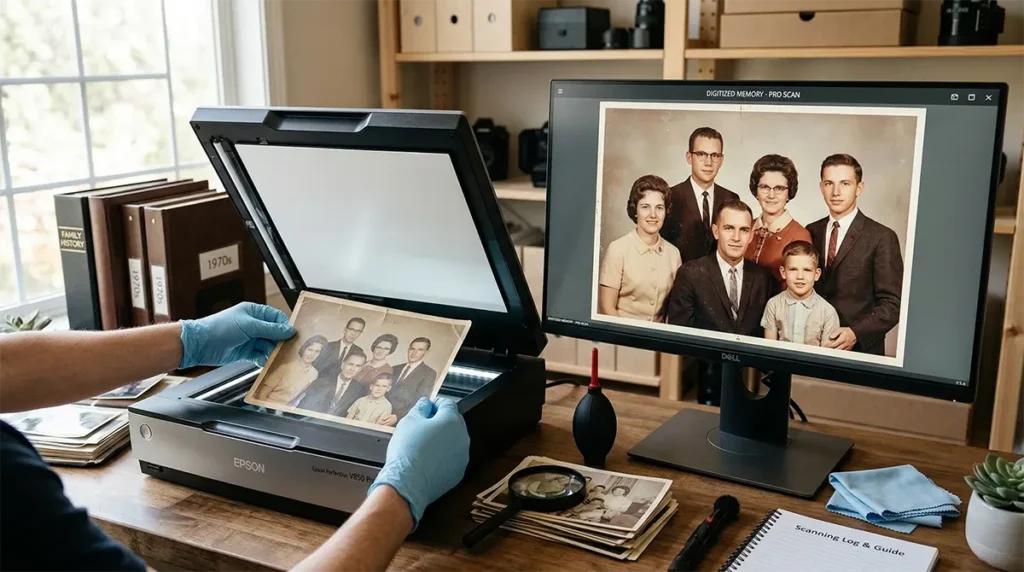
How To Scan Photos: Mastering the Art of Photo Scanning
A Guide to Digitising Your Memories
There’s nothing quite like holding a faded family photo and feeling the rush of nostalgia. But in today’s digital world, those precious prints risk fading, tearing, or getting lost forever. Digitising them—scanning old photos into high-quality digital files—preserves every detail, lets you share stories instantly, and creates backups that last generations.
Whether you’re tackling a shoebox of wedding pics, childhood snapshots, or vintage portraits, this complete photo scanning guide walks you through everything. We’ll cover the best flatbed scanner settings, DPI choices for archival quality, file formats, pro tips, and when to hand it over to experts like us at Photo Restoration Rescue in Melbourne.
Ready to turn your physical memories into timeless digital treasures? Let’s get started!
Why Digitise Your Old Photos Now?
- Preservation: Protect against damage from light, humidity, fire, or time.
- Accessibility: Easily view, share, edit, enlarge, or print on any device.
- Restoration Potential: High-quality scans make colour correction, scratch removal, and enhancements easier.
- Legacy Building: Create family albums, slideshows, or heirloom books for future generations.
Pro tip: If your photos show signs of water damage, mould, or heavy fading (as covered in our water-damaged photos guide), restore them first for the best scan results.
Quick‑Start Summary: The 30‑Second Scanning Checklist
For experienced users who just need the essentials:
- Resolution: 600 DPI for web sharing; 1200 DPI for reprinting; 2400 DPI for small prints needing enlargement.
- Format: TIFF for archiving; high‑quality JPEG (90%+) for sharing; PNG only if transparency is required.
- Colour: 24‑bit minimum; 48‑bit if you plan heavy post‑processing or restoration.
- Cleaning: Scanner glass wiped with a microfibre cloth; photos dusted with canned air or a soft brush.
- Backup: Always save original scans uncompressed before editing.
Final Checklist: Before You Begin Your Scanning Project
Run through this quick checklist to make your scanning workflow smooth, efficient, and frustration‑free:
Storage & Preparation
- Allocate sufficient storage — around 1TB per 2,000 high‑resolution scans.
- Prepare two drives: a primary working drive and an archive/backup drive.
- Decide on a clear folder structure before you start.
Cleaning & Setup
- Clean the scanner bed with distilled water and a microfibre cloth.
- Gently remove dust from photos with a soft brush or blower.
Organising Your Photos
- Organise photos by decade, event, or size for batch efficiency.
- Establish a consistent naming convention (e.g.
1995_Birthday_001).
Scanner Settings
- Set resolution:
- 600 DPI for web and casual sharing.
- 1200 DPI for quality prints.
- 2400 DPI for enlargements or very small originals.
- Choose colour depth:
- 48‑bit colour for faded or older photos and future editing.
- 24‑bit colour for modern, well‑exposed prints.
Time Planning
- Reserve enough time: around 50–75 photos per hour for careful work.
- Allow extra time for cleaning, cropping, renaming, and backing up.
Phase 1: Preparation—Where Most People Fail
The Cleaning Protocol That Saves Hours of Editing
Dust scans as white specks; hair scans as dark lines. Ten minutes of preparation eliminates two hours of Photoshop spot-healing.
Scanner Glass Preparation
Use a lint-free microfibre cloth (optical grade, not household cleaning cloths) with distilled water only. Tap water leaves mineral deposits that create rainbow artefacts on scans. Wipe in circular motions from centre to edge, then dry with second cloth.
Photo Preparation
Handle prints by edges only—fingerprints contain oils that become permanent at high resolution
Use a rocket blower (canned air with propellants can spray freezing liquid, damaging emulsion)
For sticky photos (common in Australian humid climates): See our [water damage separation guide] before scanning
Remove staples, paperclips, or photo album adhesive carefully with dental floss
Strategic Organisation: Batch Before You Scan
Chronological Workflows
Sort photos by era before scanning. This allows batch colour correction—photos from the same roll of film share similar colour casts. Create folders named by decade: 1970s_Scans, 1980s_Scans.
Physical Arrangement
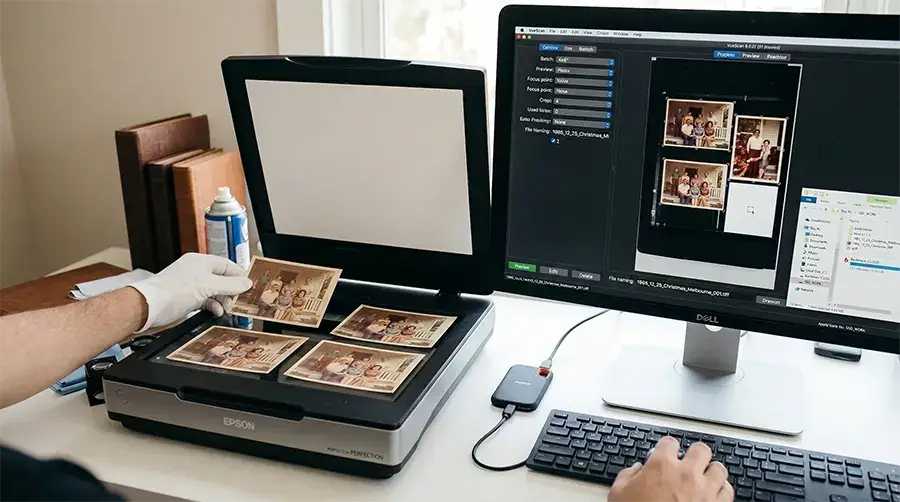
Leave 3mm gaps between photos on the scanner bed. Overlapping shadows cause automatic cropping errors. Limit to 4-6 standard photos per A4 scan to maintain resolution efficiency.

Too Hard to Scan Yourself?
No worries — we’ve all been there. One minute you’re motivated, the next you’re buried under a mountain of photos wondering why scanners were invented by someone who clearly hated free time.
Let Photo Restoration Rescue do the heavy lifting. We’ll scan, sort, and digitise your memories with zero stress and zero swearing at your scanner.
Scans start from $1 each and get even cheaper for bulk jobs (conditions apply).
Phase 2: Scanner Settings Demystified
Understanding DPI: The Resolution Equation
Dots Per Inch (DPI) determines how much detail your digital file contains. Choose wrong here, and you either waste storage space or lose irreplaceable detail.
| Print Original Size | Scanning Purpose | Recommended DPI | Resulting Pixel Dimensions | Use Case |
|---|---|---|---|---|
| 4×6″ (10×15cm) | Web/email only | 300 DPI | 1200×1800px | Email attachments, social media |
| 4×6″ (10×15cm) | Reprint same size | 600 DPI | 2400×3600px | Perfect reproductions |
| 4×6″ (10×15cm) | Enlarge to 8×10″ | 1200 DPI | 4800×7200px | Wall prints without pixelation |
| 35mm negatives | Archive master | 2400-4000 DPI | Varies by scanner | Professional archival standard |
The Math That Matters
To determine if your DPI is sufficient for printing:
Note the DPI setting (e.g., 600)
Check the original photo width in inches (e.g., 4″)
Multiply: 600 DPI × 4″ = 2400 pixels
Divide by desired print DPI (usually 300): 2400 ÷ 300 = 8 inches maximum quality width
Storage Reality Check
A 4×6″ photo at 1200 DPI creates a 120MB uncompressed TIFF file. A 1000-photo collection requires approximately 120GB of storage—plan your external hard drive or cloud backup accordingly.
Colour Settings: 24-bit vs. 48-bit
24-bit colour (8 bits per channel): 16.7 million colours. Sufficient for most prints, especially newer photos with good colour balance.
48-bit colour (16 bits per channel): 281 trillion colours. Essential for faded photos requiring aggressive colour restoration. Capture more tonal data than the human eye can see, providing “headroom” for editing without banding.
Recommendation: Scan fading 1970s-1990s prints at 48-bit; modern digital prints at 24-bit.
Phase 3: The Scanning Workflow
Step-by-Step: From Physical to Digital
1. Software Setup
Use your scanner’s native software (Epson Scan, Canon My Image Garden) for basic work. For control, switch to VueScan or SilverFast—third-party software offering superior colour profiling and batch naming.
2. Preview and Crop
Always use the Preview function. Draw crop boxes around each photo individually. This prevents:
Automatic deskew errors (software guessing photo boundaries)
Uneven exposure (scanning the entire bed averages lighting)
Manual cropping labour later
3. Scanning Strategy
Scan in batches of similar sizes. A 4×6″ photo and an 8×10″ photo require different focus depths. Large format photos often need “focus stacking” scans if the print is warped.
4. Naming Conventions
Use descriptive, future-proof filenames: YYYY_MM_DD_Description_Sequence
Example: 1985_12_25_Christmas_Melbourne_001.tiff
Avoid: IMG_0001, scan1, photo_final_FINAL
5. Immediate Backup Protocol
Save to two locations simultaneously:
Primary: External SSD or NAS drive (working copy)
Archive: Cloud storage (Backblaze, iCloud, or Google Drive)
Never rely solely on cloud storage—Australian internet outages happen during storm seasons.
Okay… Now I’ve Had It. You Do It For Me.
We get it. Scanning photos sounds easy until you’re three hours in, the scanner beeps at you for no reason, and you’ve only digitised six photos.
Skip the frustration and hand the whole job to Photo Restoration Rescue. We’ll scan, clean, and digitise your entire collection — no tantrums, no tech rage, no “why is this upside down again”.
Scans start from $1 each and get cheaper for bulk jobs (conditions apply).
Phase 4: File Format Decisions
TIFF vs. JPEG vs. PNG: The Archival Hierarchy
TIFF (Tagged Image File Format)
Compression: Lossless or uncompressed
Best for: Master archives, professional printing, future editing
Trade-off: Large file sizes (10-50× larger than JPEG)
Melbourne context: Preferred by National Archives of Australia standards
JPEG (Joint Photographic Experts Group)
Compression: Lossy (permanently discards data)
Best for: Sharing, web galleries, email
Quality setting: Always 90-100% (never below 85%)
Warning: Each re-save degrades quality (“generation loss”)
PNG (Portable Network Graphics)
Compression: Lossless
Best for: Documents with text, screenshots, graphics with sharp edges
Not recommended for: Photographic prints (inefficient file sizes for continuous tone images)
The Hybrid Workflow (Recommended)
Scan as TIFF (uncompressed) to capture maximum data
Create high-quality JPEG copies (95% quality) for sharing and daily viewing
Store TIFFs offline on multiple drives; use JPEGs for active access
Never edit the original TIFF—work on copies only

Phase 5: Quality Control and Post-Processing
The 5-Point Inspection Checklist
Review every scan at 100% zoom:
Sharpness: Are edges crisp? If blurry, check for scanner vibration or photo movement
Dust: White specks indicate cleaning failure—rescan after recleaning
Moire patterns: Wavy lines on photos printed with dot patterns (newspaper clippings)—use “Descreen” option in scanner software
Colour cast: Is the white balance correct? Grey concrete should look grey, not orange or blue
Cropping: Did you capture the entire image including borders? Full borders help date photos by printing styles
Basic Corrections (Before and After Comparison)
Auto-Enhance Limitations
Scanner “auto-colour” features often over-correct, destroying the authentic look of era-specific film stocks (1970s prints should retain warm tones). Use manual adjustments:
Levels: Set true black (shadows) and white (highlights) using the histogram
Curves: Adjust midtones for contrast without losing shadow detail
Spot healing: Remove dust and scratches using cloning tools
Sharpening: Apply “Unsharp Mask” at 50-100% radius 1.0 for prints, 0.5 for negatives

Advanced Techniques for Problem Photos
Oversized Photos (Larger Than Scanner Bed)
Use “stitch scanning”:
Scan overlapping sections
Overlap by 20% minimum
Merge in Photoshop using PhotoMerge or manually align layers
Blend seams using layer masks
Fragile/Cracked Photos
Place Mylar (archival polyester film) sheets over damaged prints before scanning to prevent flakes from damaging scanner glass. Do not use plastic wrap—it creates static cling that attracts dust.
Reflective/ Glossy Prints
Glossy photos create “hotspots” (scanner light reflections). Scan at slight angles using foam wedges, or use diffusion sheets. Alternatively, photograph with even lighting using a camera on a copy stand—sometimes faster than scanning for stubborn reflective prints.
Nope. I’m Done. You Handle It.
You tried. You really did. But after wrestling with the scanner, flipping photos the right way up, and questioning your life choices… it’s officially time to tap out.
Hand the chaos to Photo Restoration Rescue. We’ll scan, sort, and digitise your entire collection — without the drama, the sighing, or the “why is this taking so long” moments.
Scans start from $1 each and get cheaper for bulk jobs (conditions apply).
Go on… you’ve earned the break.
When to Stop DIY and Call Melbourne’s Scanning Experts
Home scanning reaches technical limits. Consider professional digitisation when handling:
Large format prints (8×10″ and larger requiring drum scanning)
Damaged or fragile photos (risk of further destruction)
Volume projects (500+ photos where automation saves weeks)
Restoration requirements (faded colours, physical damage needing repair before scanning)
Negative scanning (film requires transparency units and colour inversion expertise)
Photo Restoration Rescue provides:
High-volume scanning with professional Epson V850 and Hasselblad Flextight scanners
Damage assessment of sticky, moldy, or fragile photos before digitisation
Metadata tagging with dates, locations, and facial recognition preparation
Secure handling for irreplaceable family collections
Frequently Asked Questions About Scanning Photos
What DPI should I scan photos at for enlarging?
For enlarging a 4×6" print to 8×10", scan at a minimum of 1200 DPI. This produces a file around 4800×6000px, giving you enough pixel data to enlarge without losing sharpness or introducing interpolation artifacts.
Is it better to scan photos as PDF or JPEG?
Neither is ideal for archiving. Scan as TIFF for preservation, then export JPEG copies for sharing. PDF is designed for documents and often applies compression that destroys highlight and shadow detail in photographs.
How do I scan hundreds of photos quickly?
Use a sheet‑fed photo scanner like the Epson FastFoto series for loose prints, or batch‑scan 4–6 photos at once on a flatbed using auto‑crop software. For archival quality, expect 2–3 minutes per photo including cleaning and verification.
Why do my scanned photos look blurry?
Common causes include dirty scanner glass, warped or curled prints lifting off the glass, or scanning at too low a DPI. Ensure the photo lies completely flat and check focus in the preview before scanning.
Can damaged photos be scanned safely?
Yes — with care. Torn or flaking photos should be scanned face‑down on Mylar to prevent damage. Sticky or fused photos should never be forced apart; they require professional separation to avoid emulsion loss.
What's the best way to store digital photos after scanning?
Follow the 3‑2‑1 rule: 3 copies, 2 different media (SSD + cloud), 1 offsite. For Australian conditions, keep one local SSD copy, one cloud backup, and one copy stored with interstate family for disaster protection.
Should I scan photos in colour even if they’re black and white?
Yes. Scanning in colour captures more tonal information, giving you better control during editing and restoration. You can convert to monochrome later with higher fidelity.
Why do my scans look washed out or low contrast?
Many consumer scanners struggle with dense shadows. Enable photo mode, increase D‑max if available, or adjust curves during editing to restore proper contrast and depth.
Should I remove photos from albums before scanning?
Only if they lift out easily. For magnetic “sticky” albums or fragile prints, scan the entire page instead — removing them can tear the emulsion. A professional can safely extract and restore them if needed.
Ready to Preserve Your History?
Scanning photos is labour‑intensive but deeply rewarding. If your collection is larger than your available time, or if you encounter damaged prints that need restoration before digitisation, Photo Restoration Rescue provides museum‑grade scanning with careful, hands‑on handling of your irreplaceable memories.
Digitise My Photos
One Response